
School Licenses
If you purchased School Licenses, please follow these instructions for assigning your licenses: https://helpdesk.startasl.com/support/solutions/articles/9000275638-how-do-i-purchase-and-assign-school-licenses-
Group Seat Managers
The instructions below are for Group Seat Managers for large groups (25+ students) that have been set up manually:
- If you have already requested a school quote,
- Completed your order for your group class,
- And we have set up your new account,
- You should have received an email to set a password for your new account.
- Once you have set your password and can log into your new account, follow these instructions:
1. Log into your new account.
2. Visit your Account Dashboard: https://learn.startasl.com/author/welcome
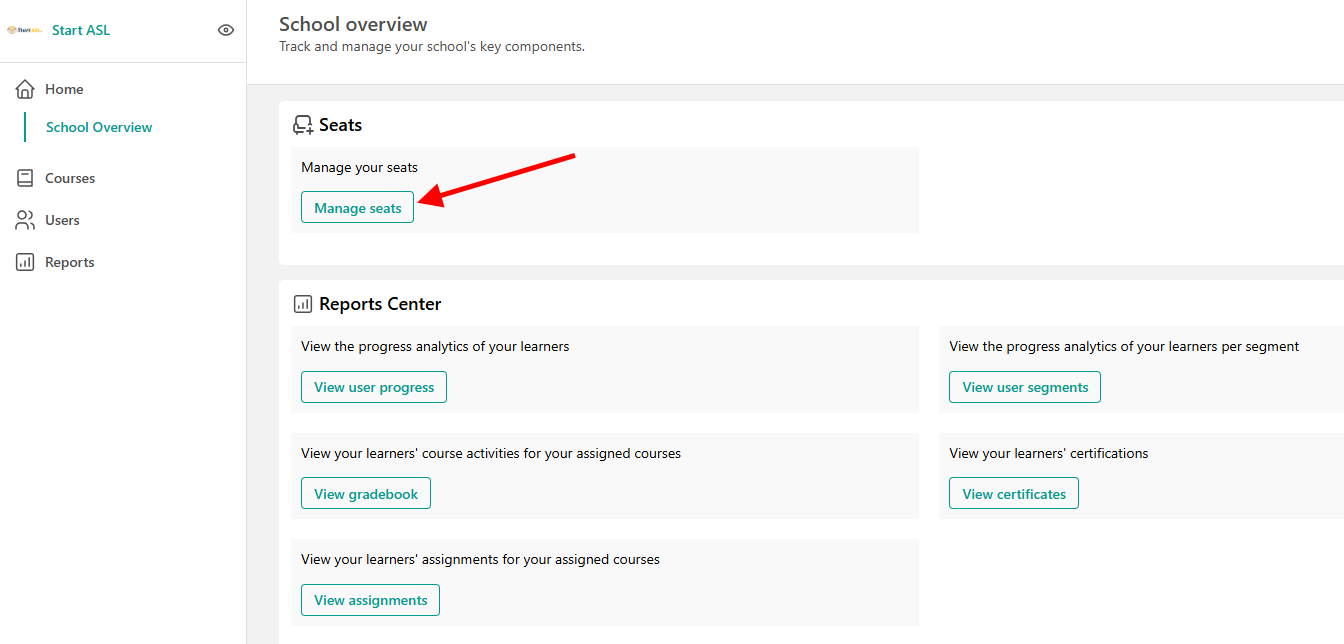
3. Click Manage seats
4. Click Add member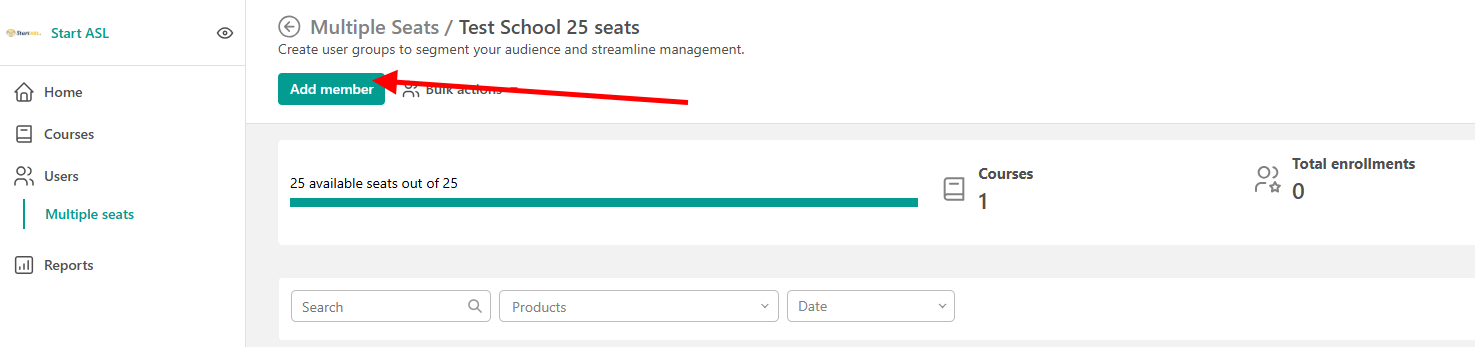
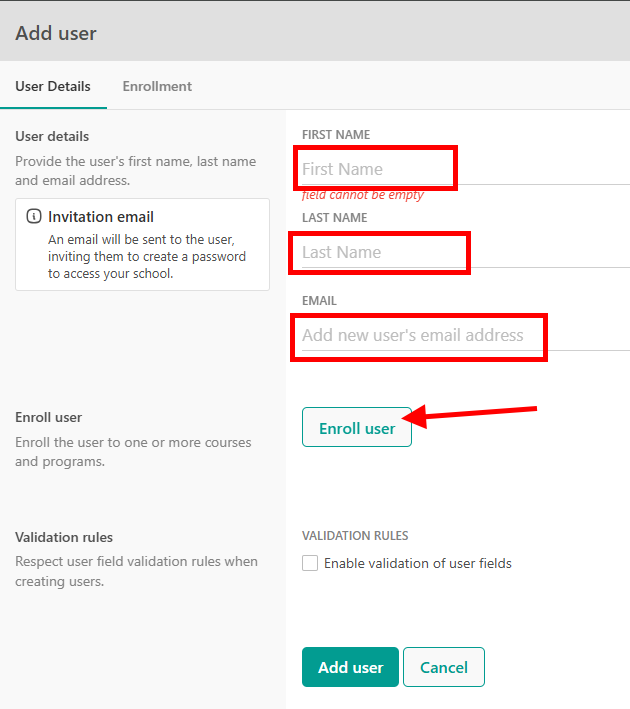
5. Enter your students' information.
6. Click Enroll user
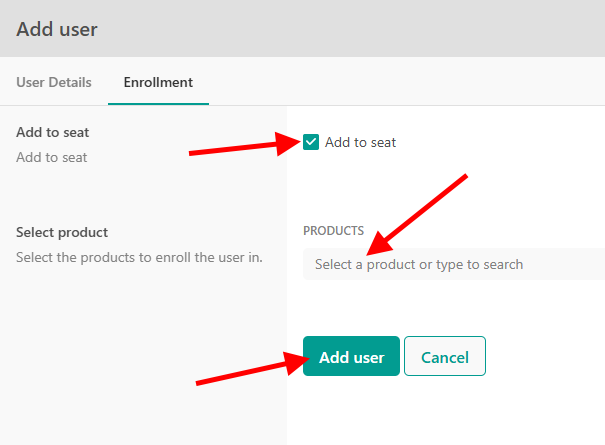
7. Check Add to seat to use one of your course seats
8. Choose the course to enroll your student to.
9. Click Add User.
10. Your student will receive an email notification that they have been added to your classroom where they can set a password for their new account and access their course.